



For many Amiga enthusiasts, installing a Compact Flash card instead of a traditional hard drive is one of the simplest and most effective ways to make the machine much more practical to use today. The Amiga itself remains the same, but the experience changes completely: Workbench boots faster, programs are always available, games installed with WHDLoad become far more convenient, and you are no longer forced to rely only on floppy disks.
The Compact Flash card is seen by the Amiga as a normal IDE drive. For this reason it is especially suitable for the Amiga 600 and Amiga 1200, which already include an internal 44-pin IDE interface, but it can also be used on the Amiga 4000 or on the Amiga 500 through compatible controllers, expansions or adapters.
In this guide we will look at what you need, how to prepare the Compact Flash card step by step, and which mistakes to avoid. The goal is not to build the most extreme configuration possible, but to obtain a stable, silent and comfortable Amiga setup for Workbench and WHDLoad.
What you need
Before using a Compact Flash card as an Amiga hard drive, you need to consider which Amiga model you are working with. On the Amiga 600 and Amiga 1200, the situation is simpler, because both machines already include an internal 44-pin IDE interface. In this case, you need a Compact Flash card, a 44-pin CF-IDE adapter and, if you want to prepare the card from a modern computer, a USB Compact Flash reader.
On the Amiga 4000 the process is still possible, but the internal connection is different and may require different adapters or cables. On the Amiga 500, however, a Compact Flash card cannot be connected directly to the base machine: you first need a controller, a side expansion or a modern board that adds storage support.
For a practical and stable setup, it is usually better to start with a modestly sized Compact Flash card, typically 4 GB or 8 GB. These sizes are more than enough for Workbench, programs, WHDLoad-installed games, demos and utilities, and they tend to cause fewer problems than much larger cards.
If your main goal is to use WHDLoad, you should also consider memory. A Compact Flash card makes the Amiga much more convenient, but many installed games require additional Fast RAM, especially on a stock Amiga 600 or Amiga 1200. Storage alone is not always enough: to obtain a truly pleasant system to use, the card, adapter, Workbench, Kickstart and memory all need to work together.
Step-by-step guide
From here on, we will go through the practical procedure for preparing a Compact Flash card and using it as an Amiga hard drive. The screenshots refer to a typical setup using WinUAE and Workbench: some menu items may vary slightly depending on the emulator version, Kickstart version or operating system used, but the overall logic remains the same.
Before installing the card in a real Amiga, it is advisable to prepare and test it in emulation. This allows you to create the partitions, install Workbench and check that the system boots correctly, reducing the risk of problems when you move to the original hardware.
This guide has been revised and updated to make the steps involving WinUAE, PFS3, Classic Workbench and WHDLoad clearer.
Required files and software
Before you begin, prepare all the material you will need during the procedure in a folder on your PC. For this guide you will need WinUAE, the Workbench disks, Classic Workbench, PFS3 AIO and, if you want to use games installed on hard drive, WHDLoad with the relevant installers.
WinUAE is the Amiga emulator for Windows that we will use to prepare the Compact Flash card before installing it in the real machine. You can download it from the official WinUAE website.
Classic Workbench is a preconfigured Workbench environment designed to make everyday Amiga use more convenient with a hard drive, utilities and WHDLoad. The official project page lets you download the various packages, such as Lite, Full, ADV and ADVSP.
PFS3 AIO is the filesystem we will use in this guide to manage the Compact Flash card more efficiently than with the standard filesystem. The “all in one” version is available on Aminet.
WHDLoad is the system that allows many Amiga games and demos originally designed for floppy disk to be installed and launched from hard drive. The official WHDLoad website contains the main package, documentation and installers.
For some configurations using Classic Workbench and Kickstart 3.x, you may also need `workbench.library` v40.5, which is required to avoid boot issues or missing library errors. The file is distributed by Cloanto and can be downloaded from its official source.
You will also need the original Workbench disks in ADF format and a Kickstart ROM compatible with the configuration you have chosen. These files must come from legitimate copies: do not download ROMs or system disks from unauthorized sources.
Step 1: preliminary operations
Before preparing the Compact Flash card for Amiga, it is a good idea to remove any existing partitions from the card. This gives you a clean starting point and avoids old Windows, Linux or other system formats causing problems during the WinUAE and Workbench setup.
Connect the Compact Flash card to your PC using a USB reader, then open the Windows Run command by pressing Windows + R. In the window that appears, type `diskpart` and press Enter.
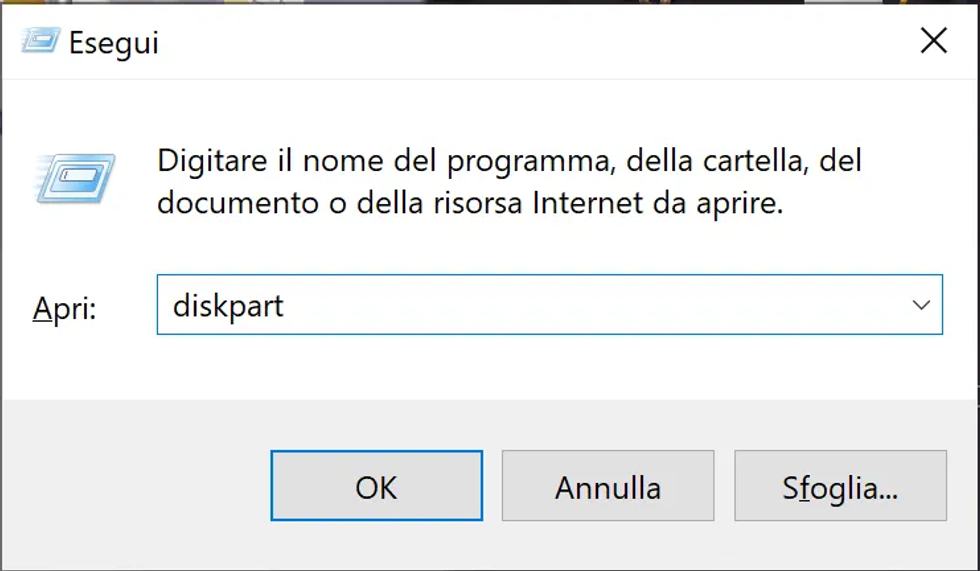
DiskPart will open, the Windows command-line tool for disk management. At this point, type list disk and press Enter.
DiskPart will show the list of disks connected to your computer. Identify the Compact Flash card by checking its size above all: in the example, the main PC drive is much larger, while the Compact Flash card is the disk of about 4 GB.
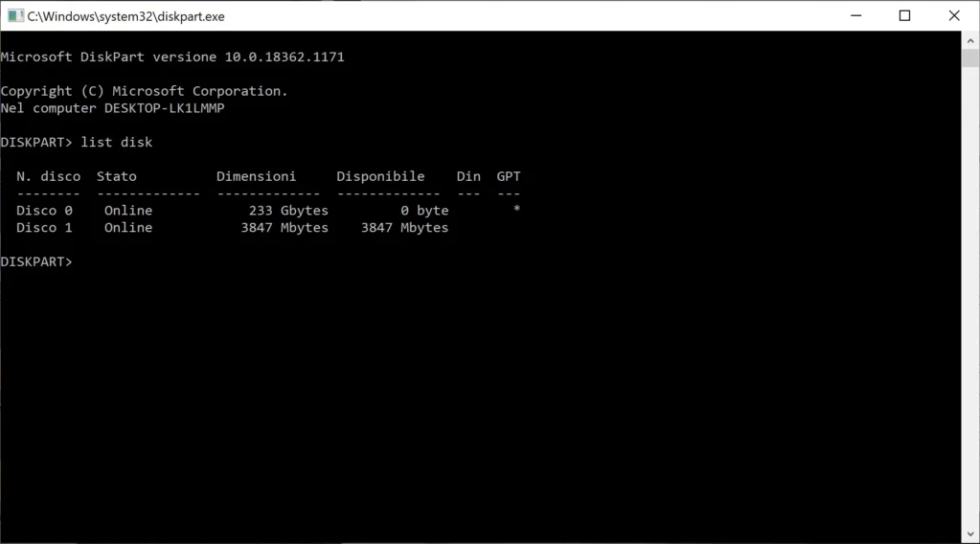
Once you have identified the Compact Flash card, select it with the command select disk X, replacing X with the disk number assigned by Windows.
Be extremely careful at this stage: selecting the wrong disk may lead to deleting partitions from another drive on your computer.
After selecting the correct disk, type list disk again. DiskPart will show an asterisk next to the currently selected disk. This is the last check before proceeding.
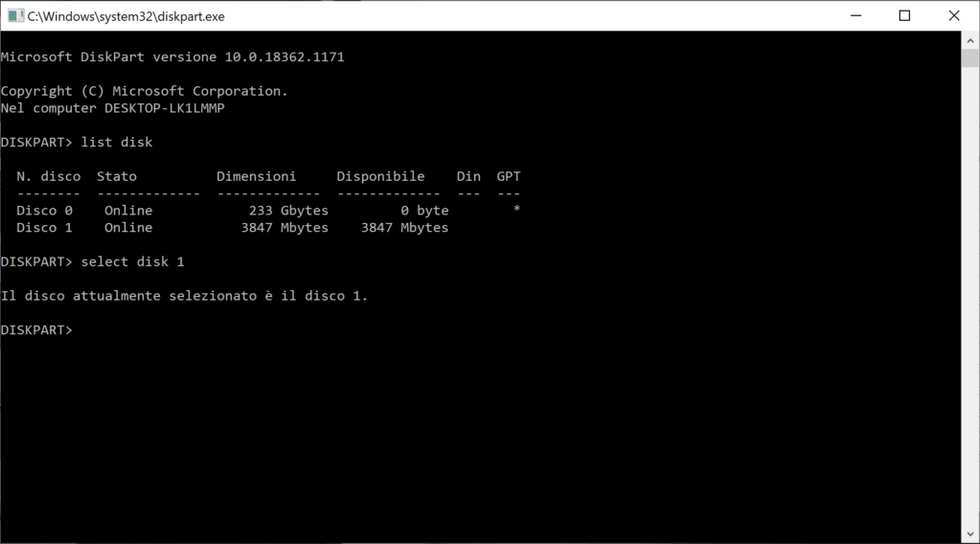
At this point you can delete the existing partitions on the Compact Flash card by typing clean and pressing Enter.
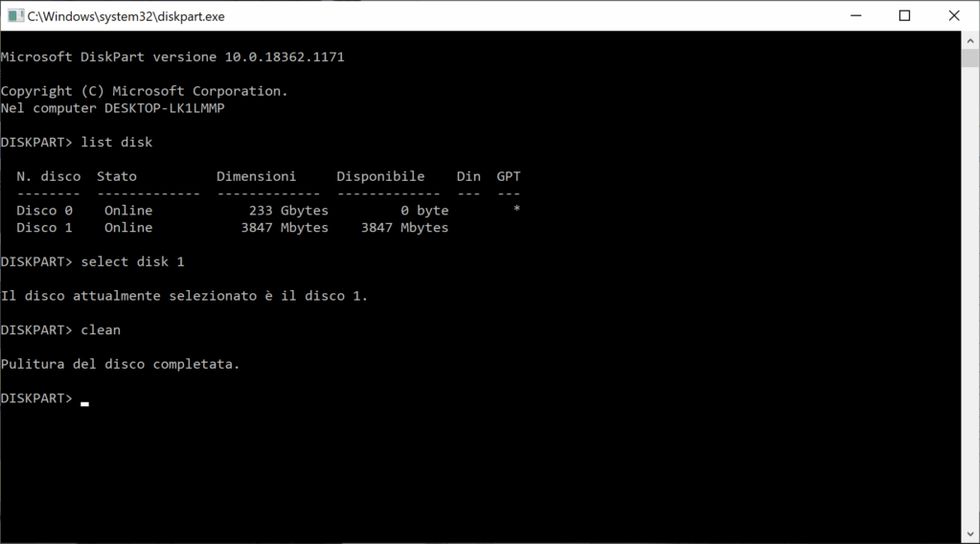
The command removes the partition structure from the card, preparing it for the next configuration step. Wait for the procedure to complete before closing the window or disconnecting the USB reader.
After the clean command, DiskPart will confirm that the disk has been cleaned. At this point the Compact Flash card no longer contains any partitions and is ready to be configured from WinUAE.
Close the Command Prompt and prepare a working folder on your PC, for example **CF Amiga**. Inside this folder, you can keep the files you will use during the configuration process neatly organized: Workbench ADF images, the PFS3 archive, Kickstart ROMs, any WHDLoad games, libraries and utilities.
For convenience, you can create a simple structure, such as a Games folder for WHDLoad games, with alphabetical subfolders, and a Kickstarts folder for the ROMs required by WHDLoad. If you need to use workbench.library or other system files, keep them ready in the same working area.
Step 2: configuring WinUAE
After cleaning the Compact Flash card, start **WinUAE**. The emulator will be used to prepare the card as if it were an Amiga hard drive, allowing you to partition it, install the filesystem and set up Workbench before moving it to the real machine.
Open the **Configurations** section and choose the Amiga model that best matches the machine on which you will use the Compact Flash card. For an Amiga 1200, select an A1200 configuration with a compatible Kickstart ROM. For an Amiga 600, use an A600 configuration. The important thing is to work with a setup that is as close as possible to the real Amiga where the card will later be installed.
If you already have a working WinUAE configuration, you can use it as a starting point. Otherwise, create a new one with the correct chipset, Kickstart and memory settings.
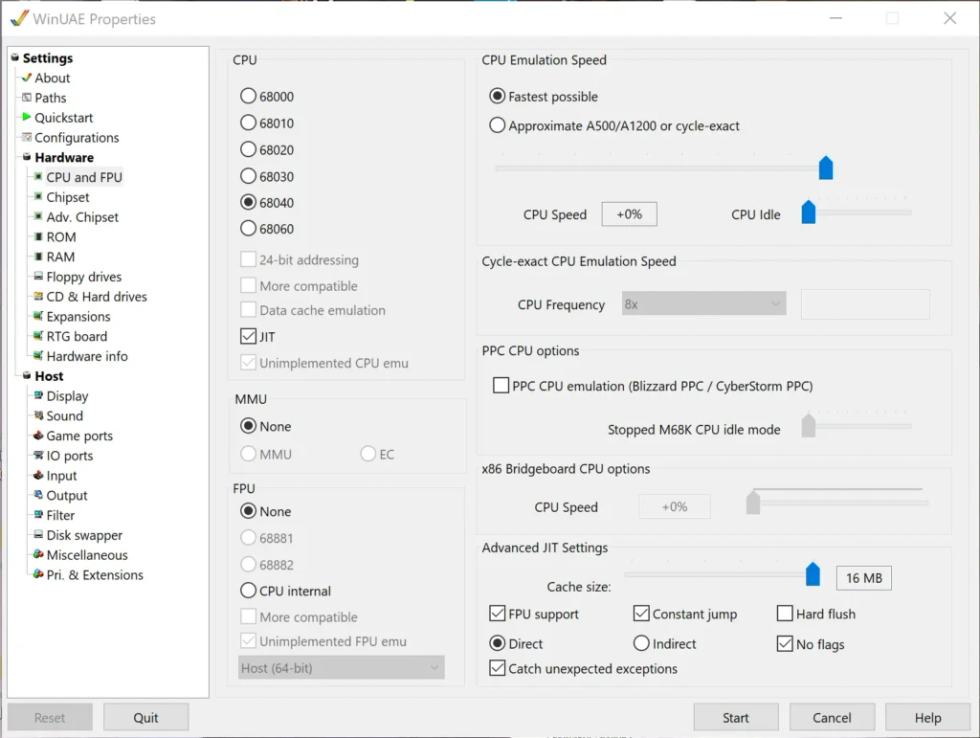
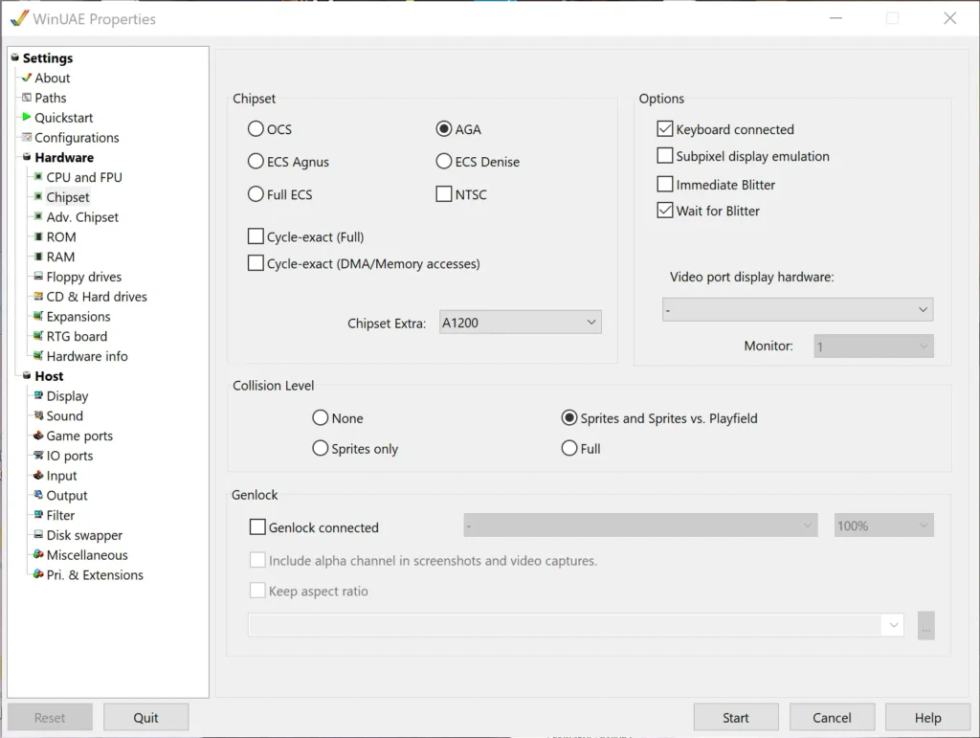
In the Chipset section, select AGA and set the profile to A1200. This choice is suitable if you are preparing a Compact Flash card for an Amiga 1200 or for an equivalent configuration in emulation.
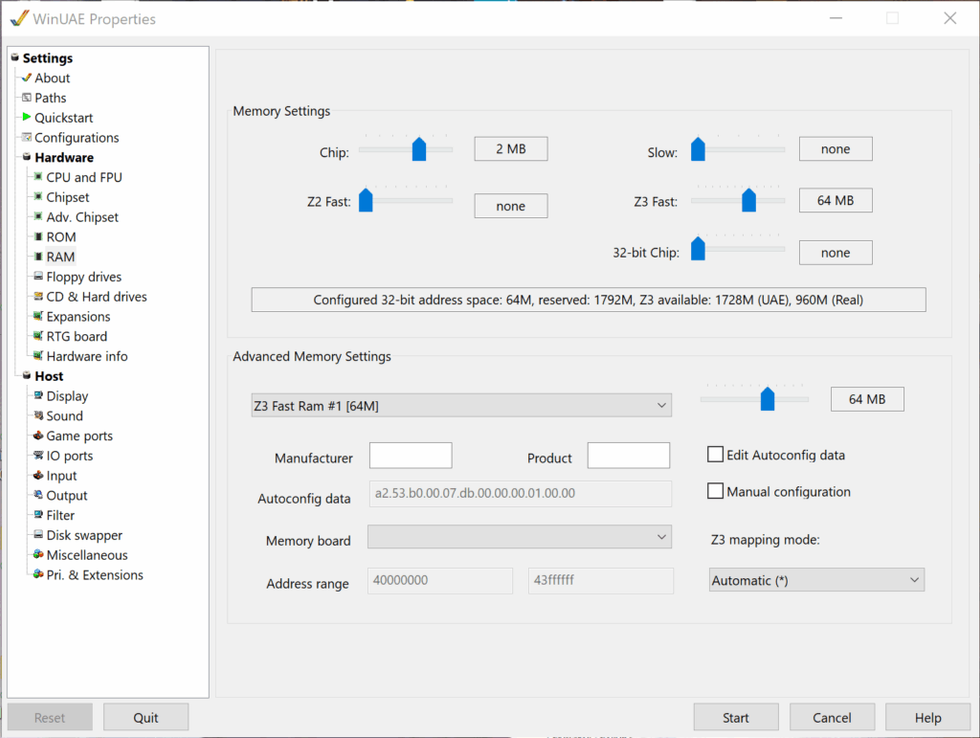
In the RAM section, assign at least 2 MB of Chip RAM and a generous amount of Fast RAM. In the example, Z3 Fast RAM is used, which helps make operations faster in WinUAE.
On the real Amiga, the amount of available memory will of course depend on your physical expansion.
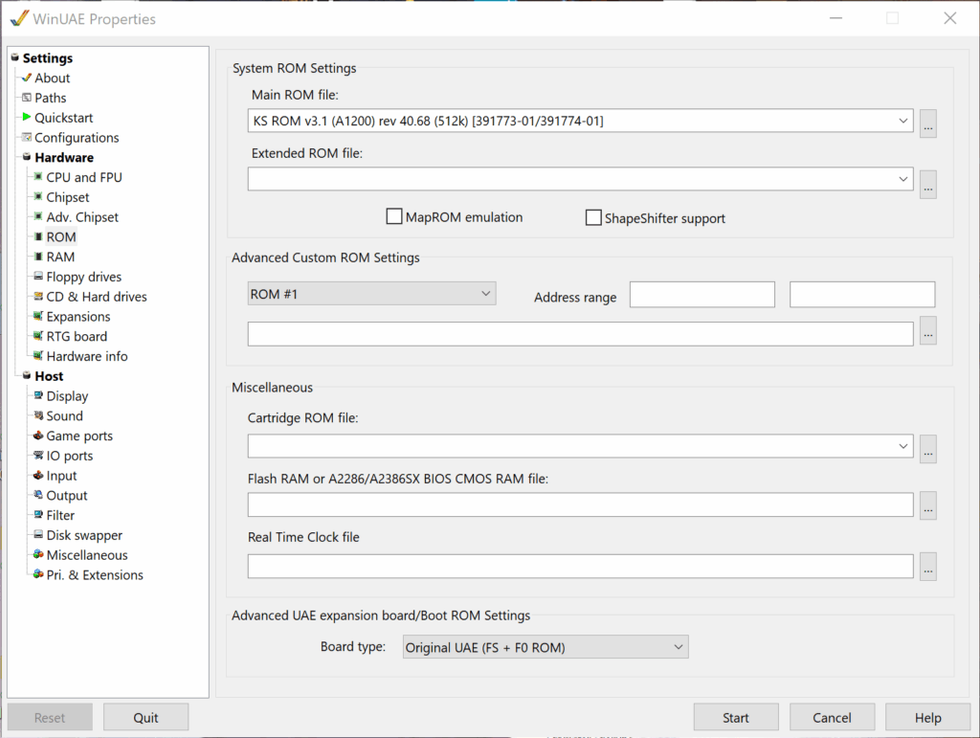
In the ROM section, select a compatible Kickstart ROM, for example Kickstart 3.1 for A1200.
Use only legally obtained ROMs: without the correct ROM, WinUAE will not be able to boot the Amiga environment properly.
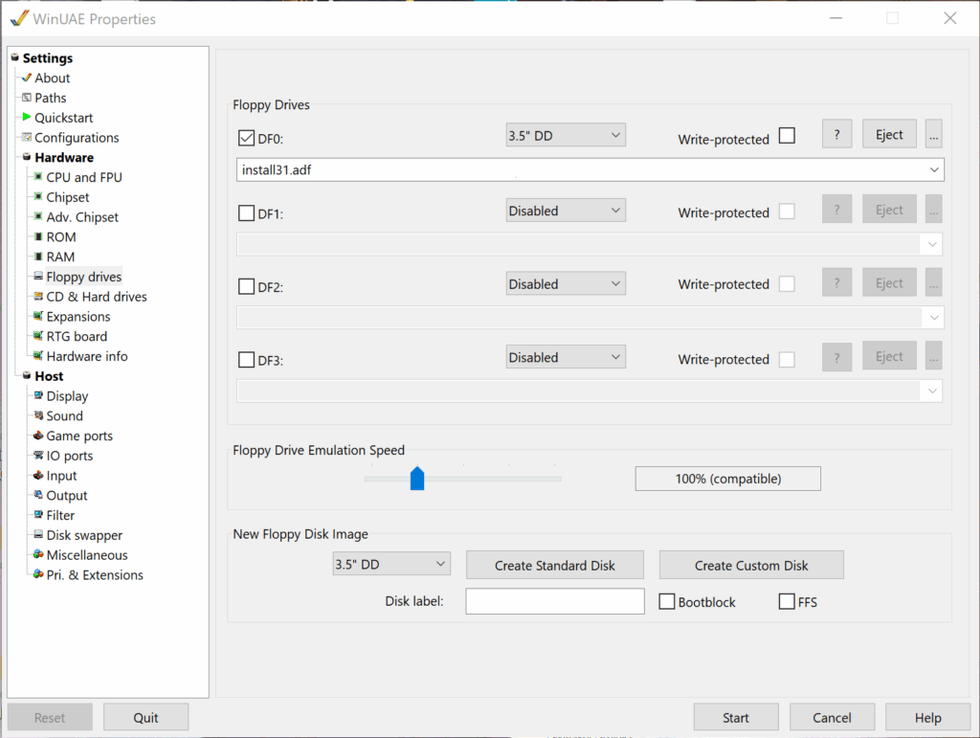
In the Floppy drives section, load the Workbench installation disk into drive DF0:, for example install31.adf if you are using Workbench 3.1. This disk will be used to start the installation environment and access the hard drive preparation tools.
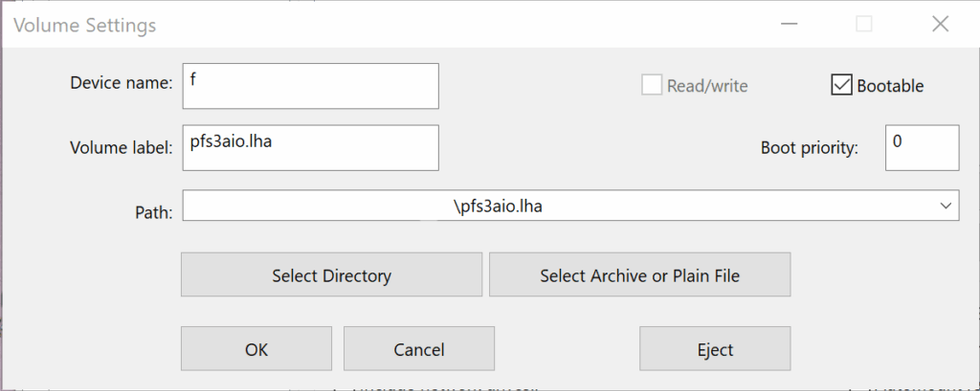
At this point, you also need to mount the PFS3 AIO archive, which is useful if you want to use the PFS3 filesystem instead of the standard filesystem. In WinUAE, you can add it as a temporary device or volume, so that it becomes accessible from the Amiga environment during configuration.
Set up a simple device, for example f, and select the pfs3aio.lha file as the source. This way, once Workbench has booted, you will be able to access the archive directly from the emulator.
Adding the Compact Flash card in WinUAE
The next step is to add the Compact Flash card to the WinUAE configuration. Here too, it is essential to have started WinUAE as administrator: otherwise, the emulator may not correctly detect the card connected to the PC.
Go to the CD & Hard drives section, choose the option to add a physical hard drive, and select the Compact Flash card from the list of available devices. Always check the disk size to make sure you are choosing the correct card.
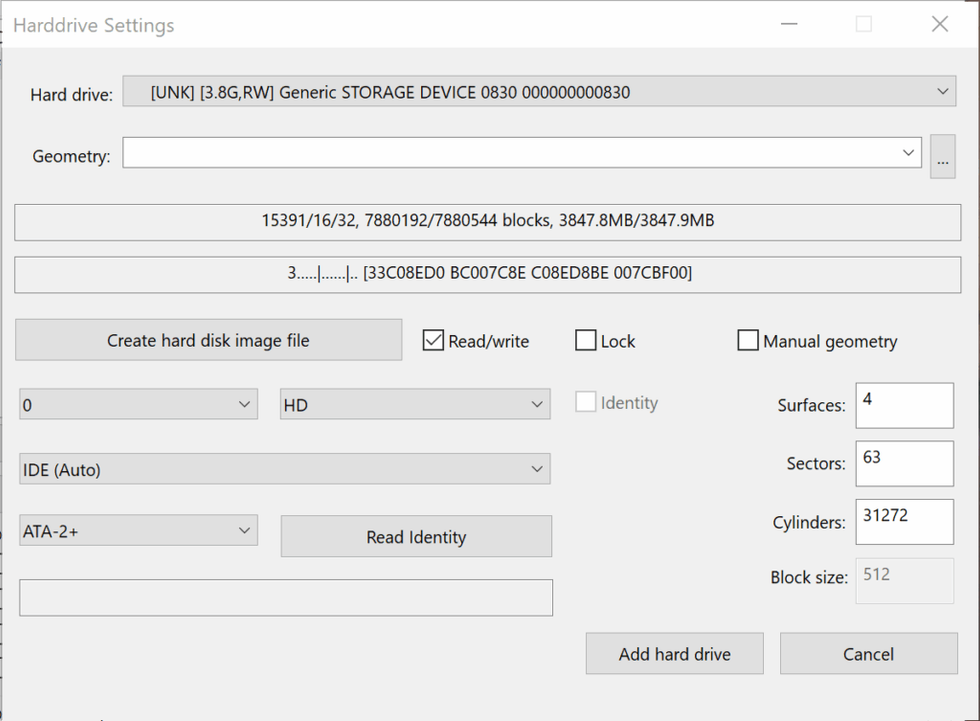
Leave the Read/write option enabled, so that WinUAE can write to the Compact Flash card. As controller, you can use IDE (Auto); in the example, the device is detected as a card of about 4 GB.
After adding the drive, select it from the list, open its properties and enable Full drive/RDB mode. This setting is important because it allows the Compact Flash card to be prepared as a real Amiga disk, with RDB and partitions managed by HDToolBox.
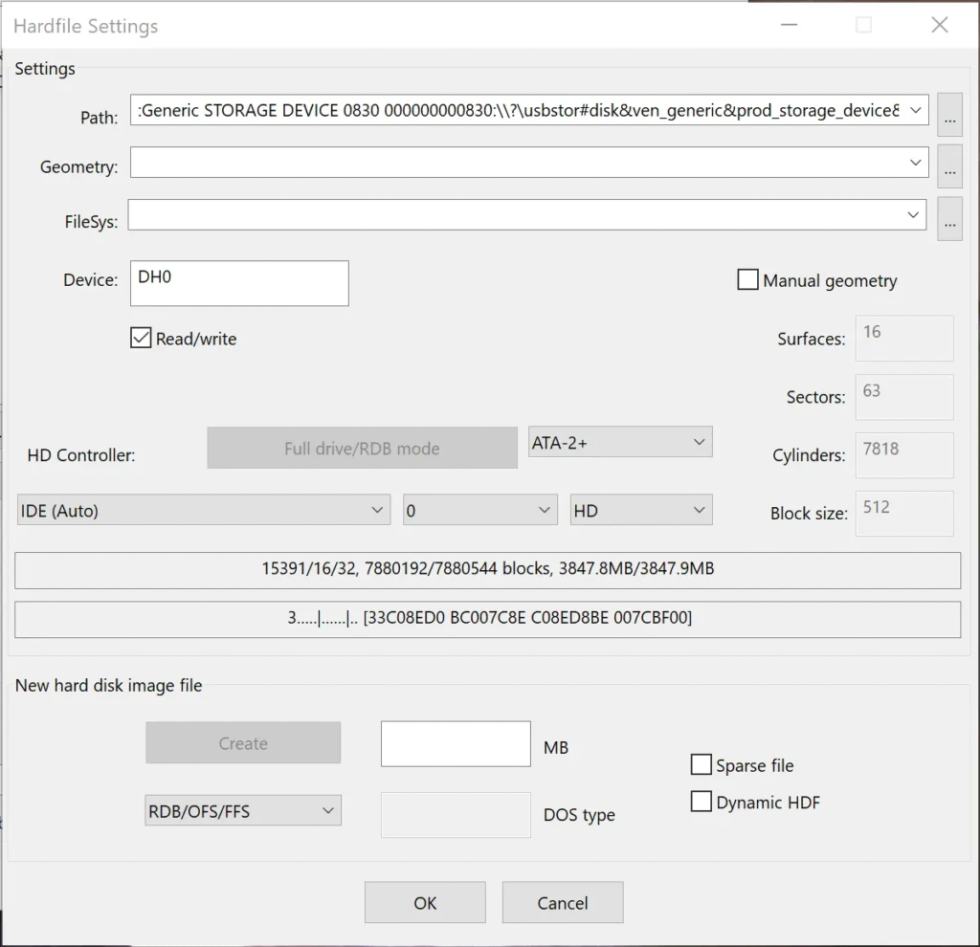
Check that the disk is still set to read/write mode and confirm the configuration. At this point, you can start the virtual machine by clicking Start.
Step 3: partitioning the Compact Flash card
Once Workbench has booted from the installation disk, you need to partition the Compact Flash card to make it usable on Amiga. Open HDToolBox: if the disk was added correctly in WinUAE, you should see a new unit with SCSI interface, address 0, LUN 0 and an initial status shown as Unknown.
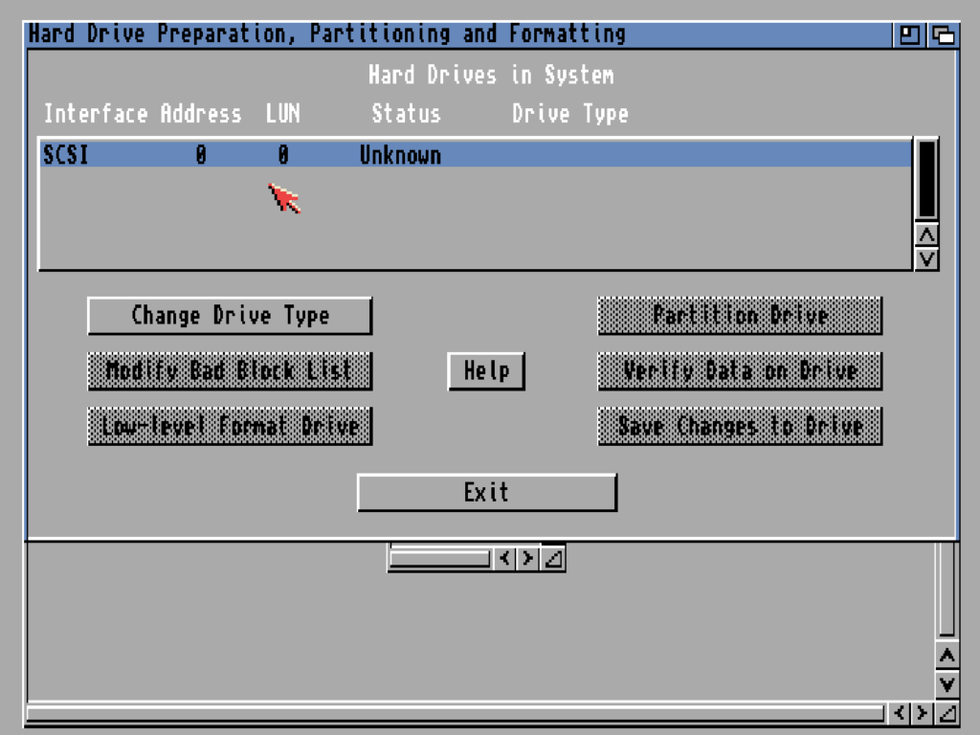
Select the disk and proceed with the drive type configuration, then enter the partitioning section. For a simple and stable setup, it is advisable to create at least two partitions: a small system partition and a larger partition for games, programs and data.
The first partition can be called DH0 and used for Workbench. In the example, it is set to about 250 MB, which is more than enough for the operating system, utilities and main files. Make sure the DH0 partition is marked as Bootable, so the Amiga can boot directly from the Compact Flash card.
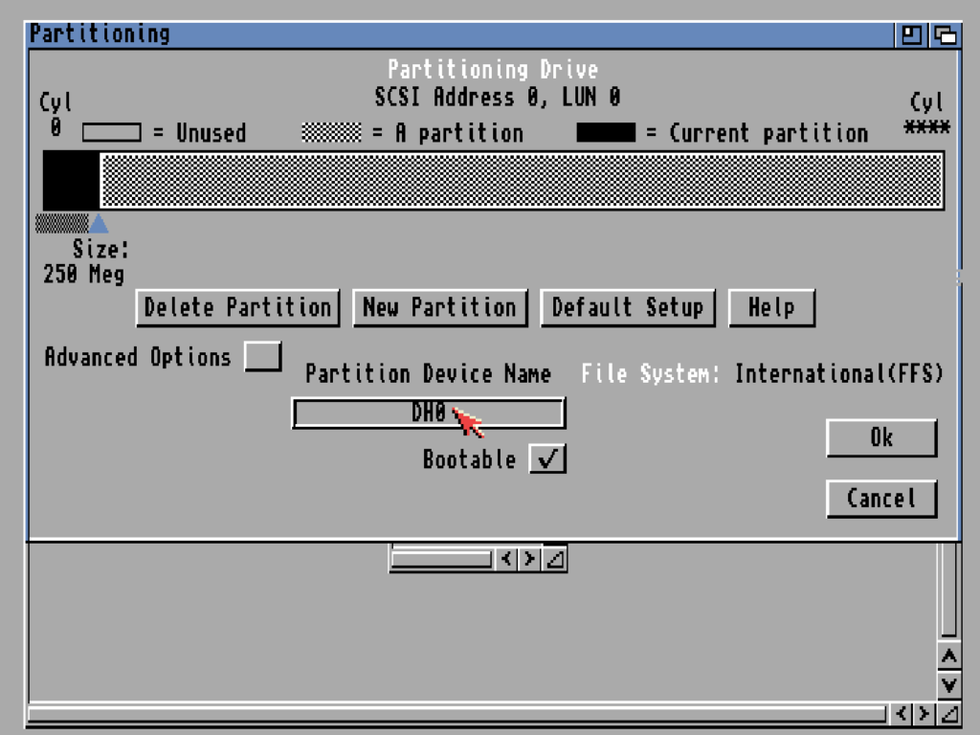
Adding PFS3 as the filesystem
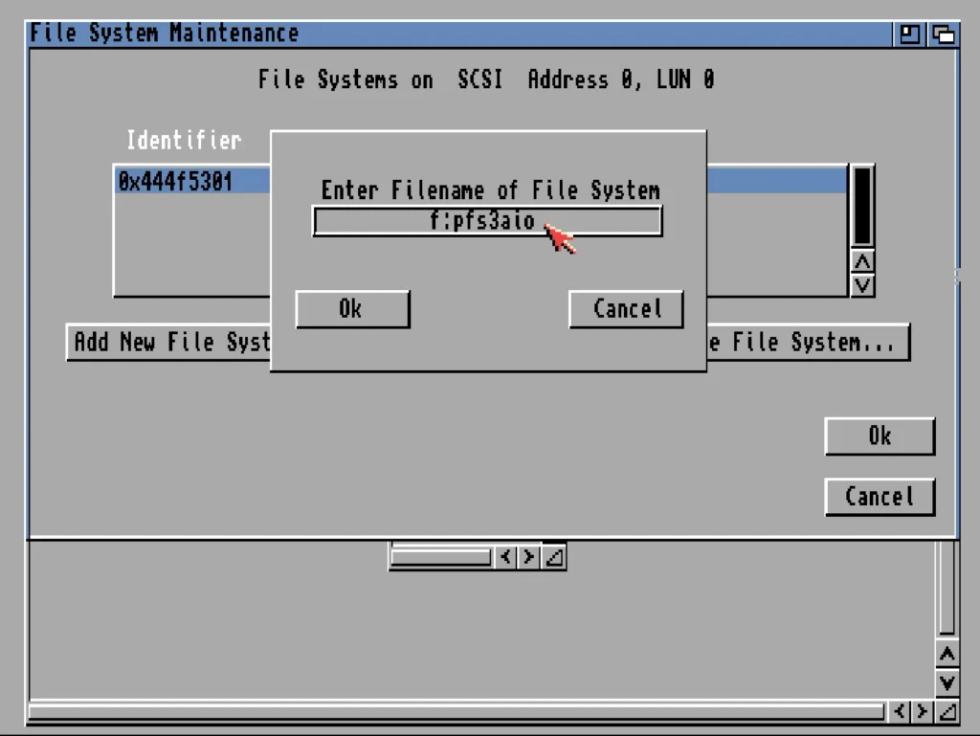
If you want to use PFS3, you need to add it as a filesystem in the disk configuration. From the filesystem maintenance window, choose the option to add a new filesystem and enter the path to the PFS3 AIO file mounted earlier.
In our example, the file is accessible through device f, so the path to enter is f:pfs3aio.
Confirm with OK.
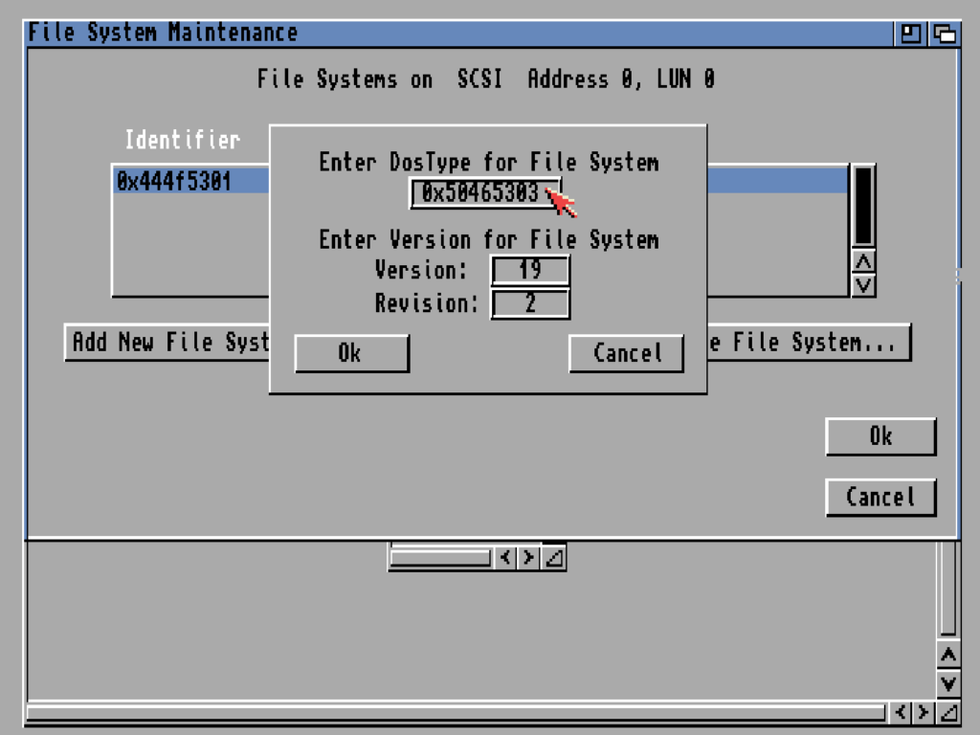
At this point, you need to correctly set the filesystem DosType value. For PFS3, the value to use is 0x50465303.
Also set the version and revision values as shown in the screenshot, then confirm.
To avoid compatibility problems, also change the MaxTransfer value and set it to 0x1fe00. This parameter is important: an incorrect value can cause data corruption or unstable behaviour while copying files to the Compact Flash card.
When the partitions are ready, confirm with OK, then click Save Changes to Drive. Exit HDToolBox and restart the virtual Amiga.
Step 4: installing Classic Workbench
Now you need to install the system on the Compact Flash card. Before doing so, make sure the partitions have been saved correctly by HDToolBox and that the virtual Amiga has been restarted after partitioning.
After the restart, Workbench should show the new partitions as not yet formatted. Select the DH0 partition, open the top menu and choose Format Disk. Give the partition a clear name, for example System, select Quick Format and confirm the warnings.
Repeat the same operation for DH1, which you can call Games, Work or whatever you prefer. In this guide, we will use System for the system partition and Games for the partition intended for WHDLoad games.
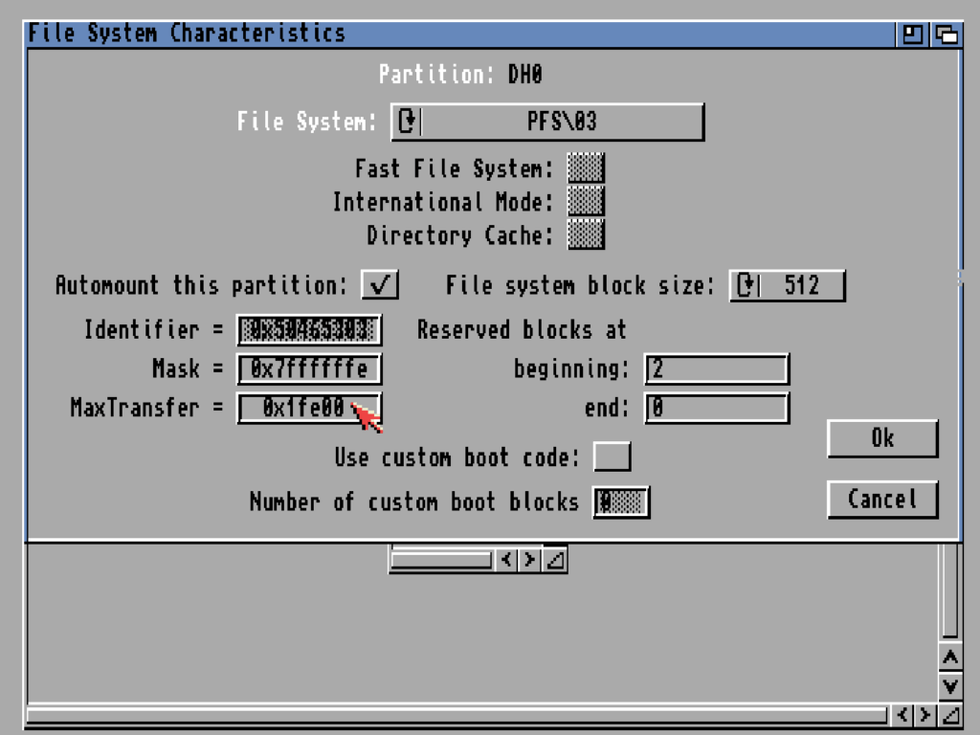
Check once again that the MaxTransfer value is set to 0x1fe00.
This is an important detail: an unsuitable value can cause errors or data corruption while copying files.
At this point, press F12 to return to the WinUAE settings and go to the CD & Hard drives section. Now you need to add the System.hdf file that you previously extracted from the Classic Workbench archive.
Click Add Hardfile, select System.hdf and make sure the HD Controller is set to UAE. In the Device field, enter DH2 and set the Boot priority to 1.
This way, after restarting, WinUAE will give priority to the Classic Workbench disk, allowing you to complete the installation and then copy the system to the Compact Flash card.
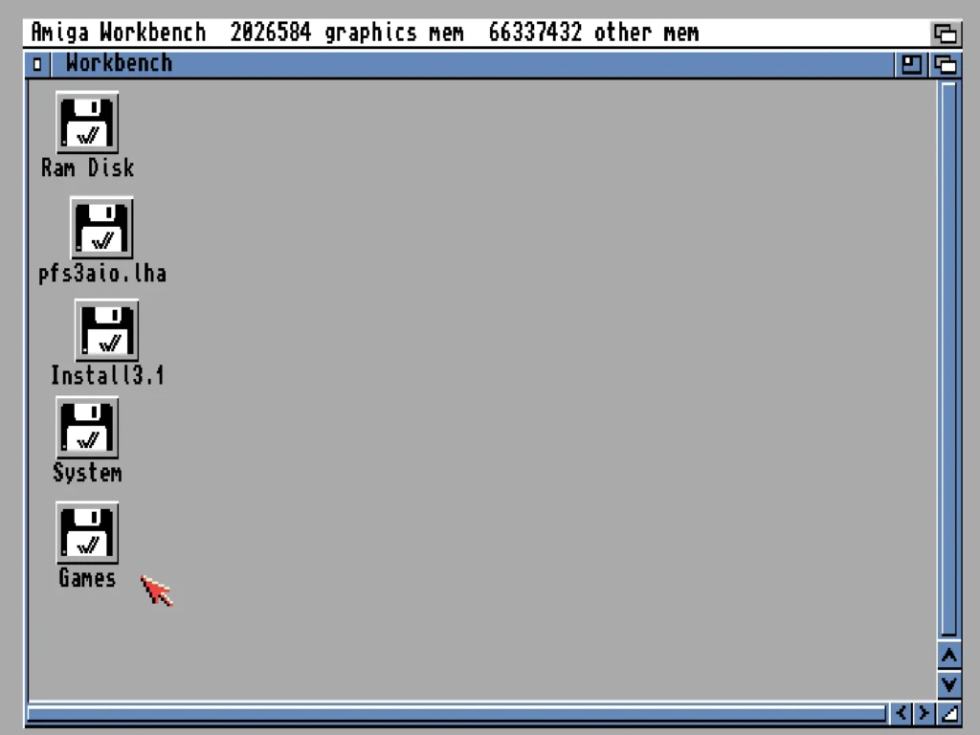
At this point, remove the temporary pfs3aio device, go to the Floppy drives section and eject the Workbench installation disk. Restart the virtual machine.
After the restart, the Classic Workbench installation should begin. Choose the settings you prefer and, when the system asks for the Workbench disks, press F12 and mount the ADF files from your copy one at a time. You can use Workbench 3.0 or 3.1, depending on the configuration you have chosen and the files you own.
Follow the on-screen instructions. When the installation is complete, before restarting, eject any ADF files still mounted in the virtual floppy drive.
After the reboot, you may not immediately see the Compact Flash partition, or you may find two volumes with the same name. This happens because both Classic Workbench and the CF card may use the name System, creating confusion in the system.
To avoid conflicts, temporarily rename the Classic Workbench partition to System2, then restart the virtual machine again.
Now you need to copy the entire contents of System2 to the DH0 partition on the Compact Flash card. Start DOPUS from the Classic Workbench menu: right-click, go to Run and select DOPUS.
Once Directory Opus is open, set the left window to volume DH2: and the right window to DH0:.
If they do not appear in the list, you can type them manually into the respective fields. Select the left window, click All and then Copy to copy all the Classic Workbench files to the Compact Flash card. The operation may take a few minutes.
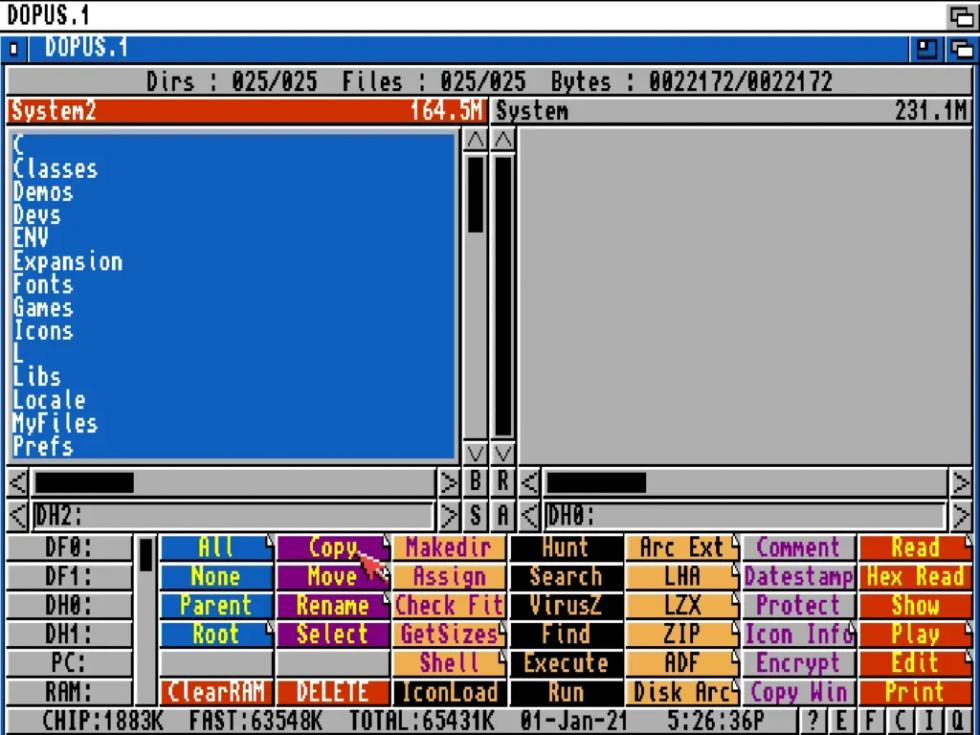
When the copy is complete, press F12, remove the Classic Workbench image file from the disks configured in WinUAE and leave only the Compact Flash card mounted. Restart the virtual machine.
If everything has gone correctly, WinUAE should boot directly from the Compact Flash card, loading the system installed on DH0.
Step 5: preparing the Amiga for WHDLoad
At this point, the Compact Flash card is bootable, but you still need to complete the configuration to use WHDLoad comfortably. First, mount in WinUAE the PC folder where you collected the games, Kickstarts and required files, that is the working folder created at the beginning of the guide.
In WinUAE, add this folder as a shared directory. In the Device name and Volume label fields, you can enter PC.
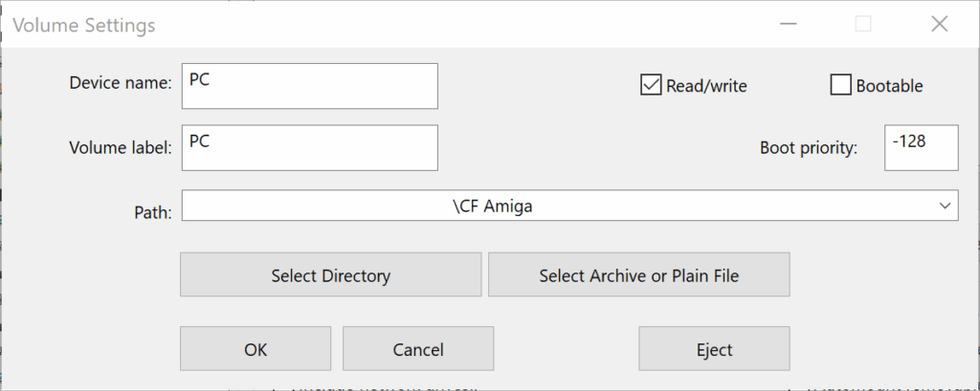
From this volume, you will be able to copy files to the Compact Flash card using Directory Opus. First, copy the Kickstart ROMs required by WHDLoad into the correct system folder, usually DH0:Devs/Kickstarts/.
Make sure you use only ROMs obtained from legitimate copies and compatible with WHDLoad.
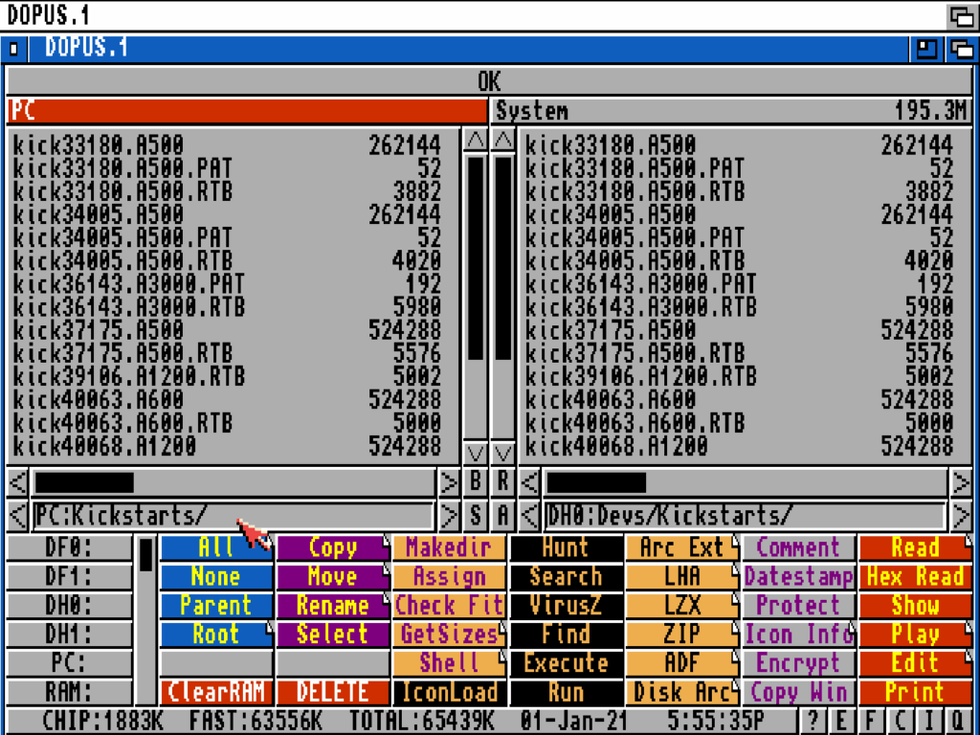
Also copy workbench.library v40.5, previously downloaded from the Cloanto link, into the DH0:Libs/ folder. In some configurations with Kickstart 3.x, it is required for the installed Workbench to work correctly.
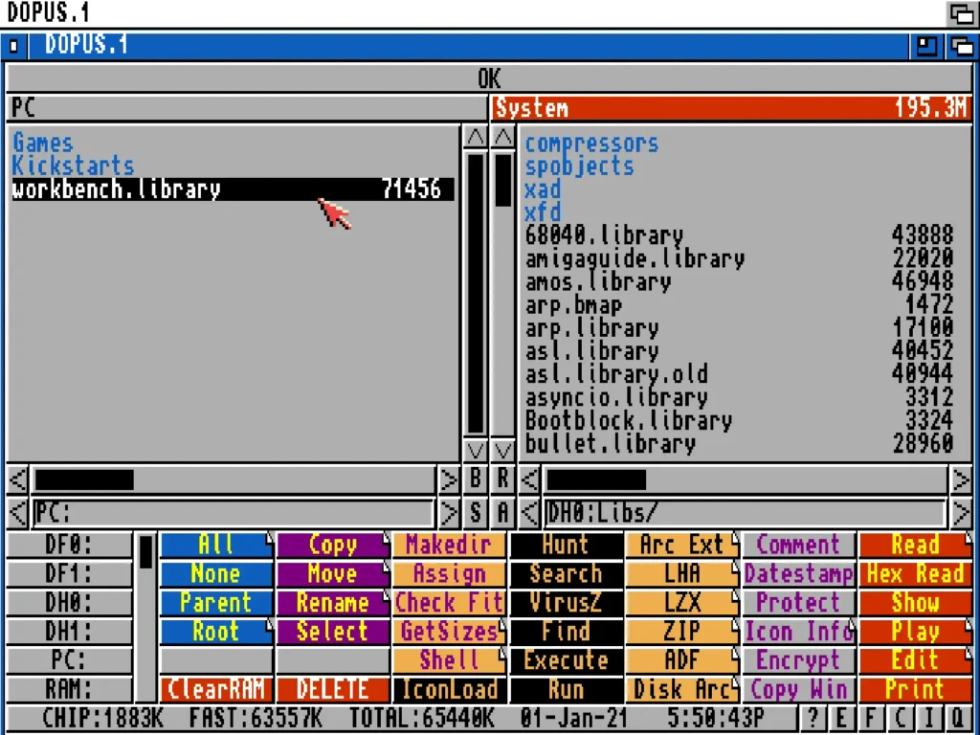
At this point, you can copy the WHDLoad games to the data partition. In this guide, we use DH1 as the games partition, named Games.
Then copy the games folder from the PC volume to the DH1: partition or, if you prefer to keep everything inside a dedicated folder, to DH1:Games/.
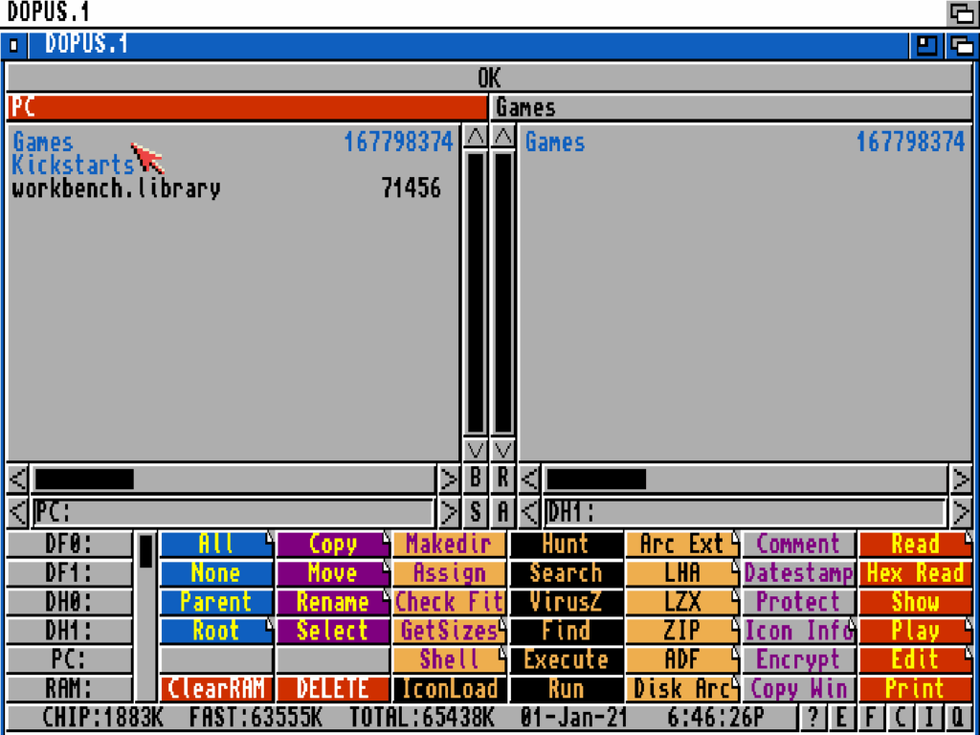
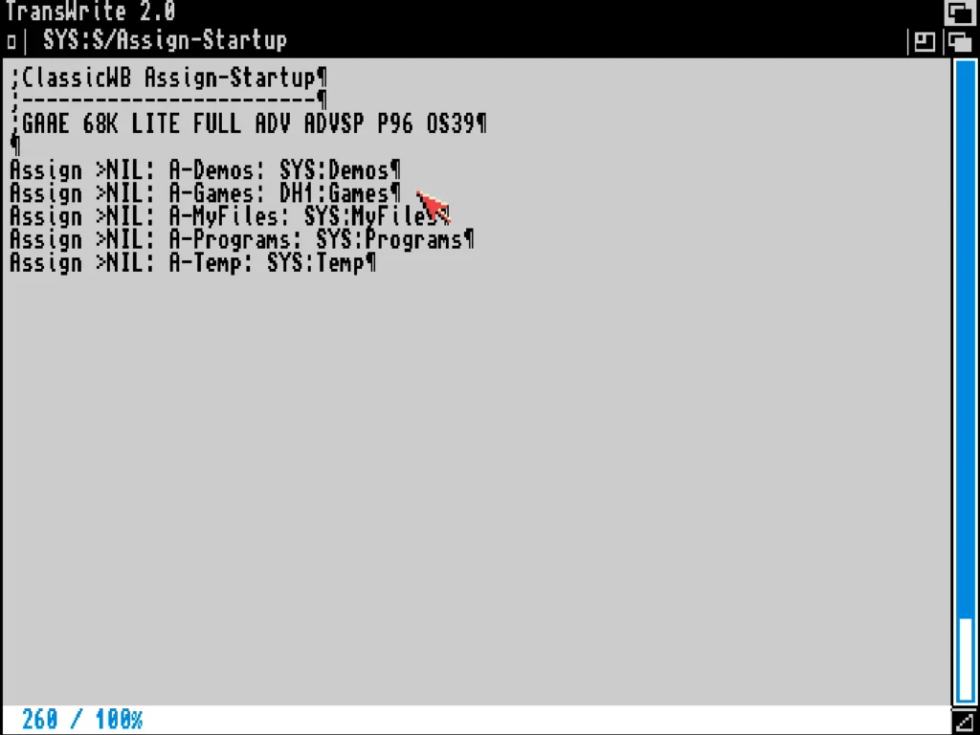
To make sure Classic Workbench correctly finds the games folder, it may be necessary to modify the assigns. Open the configuration file indicated by the system, for example Assign-Startup, and change the destination of A-Games.
The original line may look like this: Assign >NIL: A-Games: SYS:Games.
Change it to: Assign >NIL: A-Games: DH1:Games.
Save the file and restart the virtual Amiga.
After the restart, Classic Workbench should correctly see the games folder on the DH1 partition. At this point, the Compact Flash card is ready to be tested in WinUAE and, if everything works, installed in the real Amiga.
Completing WHDLoad and checking the games
After modifying the assigns, save the file. In Classic Workbench, you can do this from the editor menu, opened by right-clicking on the top bar of the window. Then restart the virtual Amiga to apply the new setting.
At this point, all that remains is to update the WHDLoad games menu. Open the Files drawer, at the bottom left, and double-click AddGames.
The operation may take some time, especially if you have copied many games to the DH1 partition.
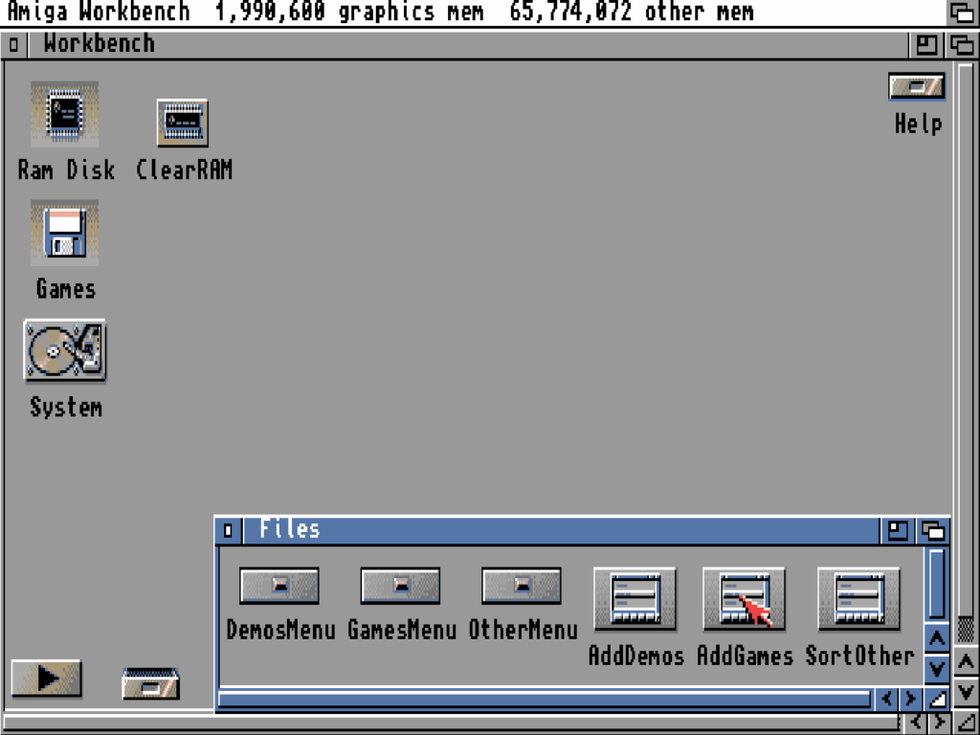
When the scan is complete, check that everything has been recognized correctly. Right-click on an empty area of the desktop, go to Run → Games and make sure the menu opens with the list of installed games.
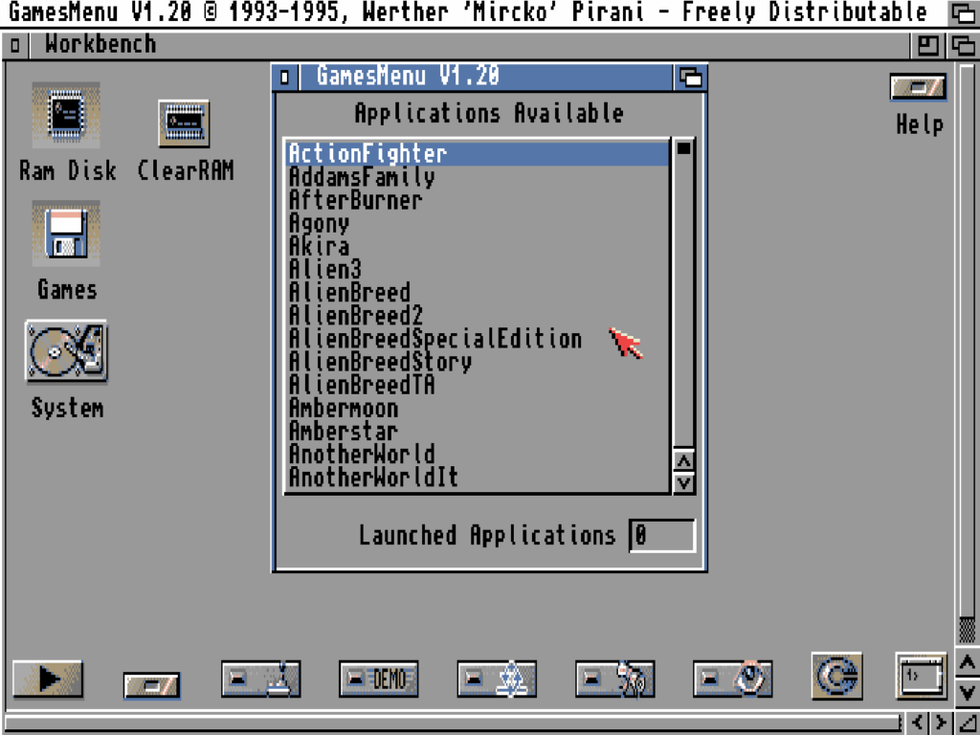
If the menu shows the titles correctly, the configuration is ready. At this point, you can shut down WinUAE, remove the Compact Flash card from the USB reader and install it in your real Amiga using the CF-IDE adapter.
Before installing it physically, however, it is advisable to make a complete backup of the card from your PC. This way, if something goes wrong in the future, you will be able to restore the configuration without repeating the whole procedure from scratch.
Conclusion
The Compact Flash card is now ready to work as a hard drive for your Amiga. If you have followed all the steps, you should have a bootable system partition, a dedicated games partition and a configuration suitable for using Workbench, Classic Workbench and WHDLoad in a much more practical way than relying only on floppy disks.
Using a Compact Flash card on Amiga does not mean distorting the machine. On the contrary, it is one of the smartest ways to make it still usable today, reducing loading times, noise, floppy wear and everyday inconvenience. The experience remains that of a historic computer, but it becomes more stable, organized and enjoyable.
The final advice is simple: once you have a working configuration, never work without a backup. Clone the Compact Flash card, keep a copy of the configuration and write down the components you used. With vintage hardware, caution is worth more than any upgrade.
If, instead, you want to keep the original floppy drive but also use ADF images from USB, you can combine the Compact Flash card with an external or internal Gotek: the two solutions do not exclude each other, but complement each other.
Frequently Asked Questions
What size should the Compact Flash card be?
For classic Amiga use, a 4 GB or 8 GB Compact Flash card is often the best choice. Larger sizes can work, but they require more attention when managing partitions, filesystems and compatibility. On vintage machines, it is usually better to prioritize stability and simplicity rather than maximum capacity.
Can I use an SD card instead of a Compact Flash card?
Yes, it is possible to use an SD card through an IDE-SD adapter, but Compact Flash generally remains a solution closer to the behaviour of an IDE hard drive and tends to be more compatible with many Amiga configurations. If you want to reduce problems, a reliable CF card is often the safer choice.
Is WinUAE strictly necessary?
No. It is possible to prepare everything directly on a real Amiga, but WinUAE makes the procedure much simpler, speeds up the installation and makes copying files more convenient. It also allows you to test the Compact Flash card before physically installing it in the machine.
Can I use this guide with an Amiga 500 too?
Yes, but not directly on a stock Amiga 500. The A500 does not have an internal IDE interface like the Amiga 600 and Amiga 1200, so you need a controller, a side expansion or a modern board that adds storage support. Without a suitable interface, the Compact Flash card cannot work as a hard drive.
Is a Compact Flash card faster than an original hard disk?
Yes, especially in access times. You should not expect “modern” performance in an absolute sense, because the Amiga remains limited by its architecture and by the controller used, but compared with old mechanical drives, the improvement in everyday use is obvious.
Do I have to use PFS3?
No, but it is recommended. The standard Amiga filesystem can work, especially with simple configurations, but PFS3 is better suited to modern media and can offer greater efficiency and reliability. The important thing is to configure it correctly, especially regarding DosType and MaxTransfer.
Why doesn’t the Amiga see the Compact Flash card?
The most common causes are an incompatible Compact Flash card, an adapter mounted the wrong way around, an incorrect HDToolBox configuration, partitions not saved correctly or an unsuitable Kickstart. If this happens, it is best to go back to the initial steps: disk detection, RDB mode, partitions, filesystem and adapter orientation.
Can I use ADF files directly with this configuration?
No, not directly. ADF files are floppy images, while this configuration is intended for games and programs installed on hard drive, especially through WHDLoad. If you want to use ADF files conveniently from USB, a Gotek is a more suitable solution.
Do I need Fast RAM?
It is not mandatory to use a Compact Flash card as a hard drive, but it is strongly recommended if you want to use WHDLoad. Many games and demos require additional memory to work correctly, especially on a stock Amiga 600 or Amiga 1200.
Once configured, do I have to repeat everything if I change Compact Flash card?
Not necessarily. If you create a complete copy, that is a clone of the Compact Flash card, you can transfer the entire configuration to another card without repeating the whole procedure. This is one of the reasons why it is a good idea to make a backup as soon as the configuration works.
Reader memories
Comments, memories and points of view stay here, beside the article.
Comment rulesLog in or register to leave a comment.
Leave a comment
Create your account
Loading comments...